
September 23, 2026 · Erick Mathias + Silvana Santos
Inside the Konvéz Quality document module
Which procedure is published? Who is reviewing an approval? What changed since the previous version? This tour of the Konvéz Quality document module follows four real screens to show where teams can find those answers.
We use two examples: Documented Information Control, already published, and Export Shipment Planning, still awaiting approval. Their different stages show how the library brings organization, responsibilities and history together.
The data shown in the screenshots and video is fictional and used for demonstration.
Watch the workflow
1. Start with the document library
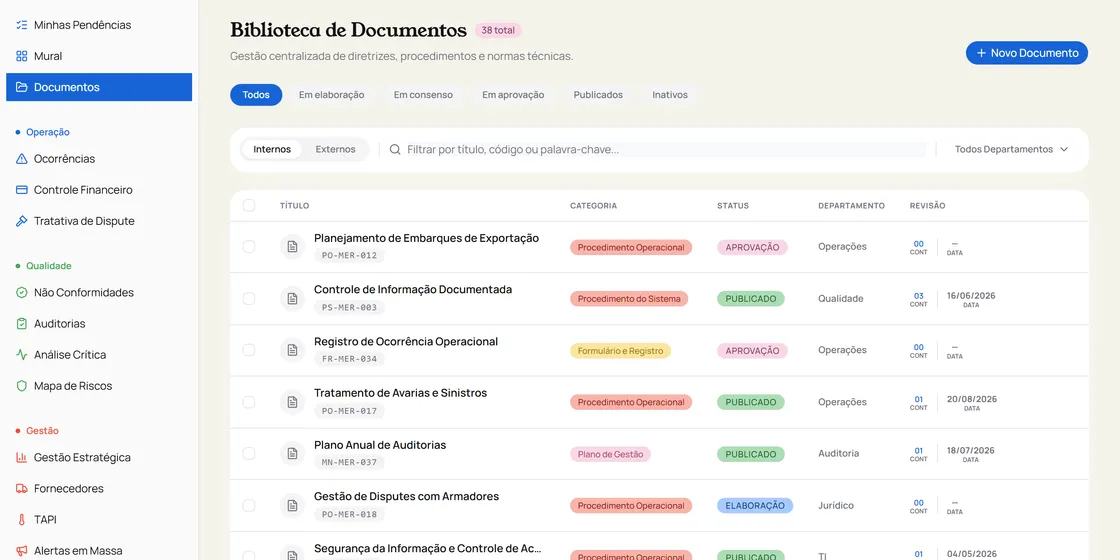
The library displays title, code, category, status, department and revision in one list. In the screenshot, a published procedure is distinguishable from one awaiting approval without opening each record.
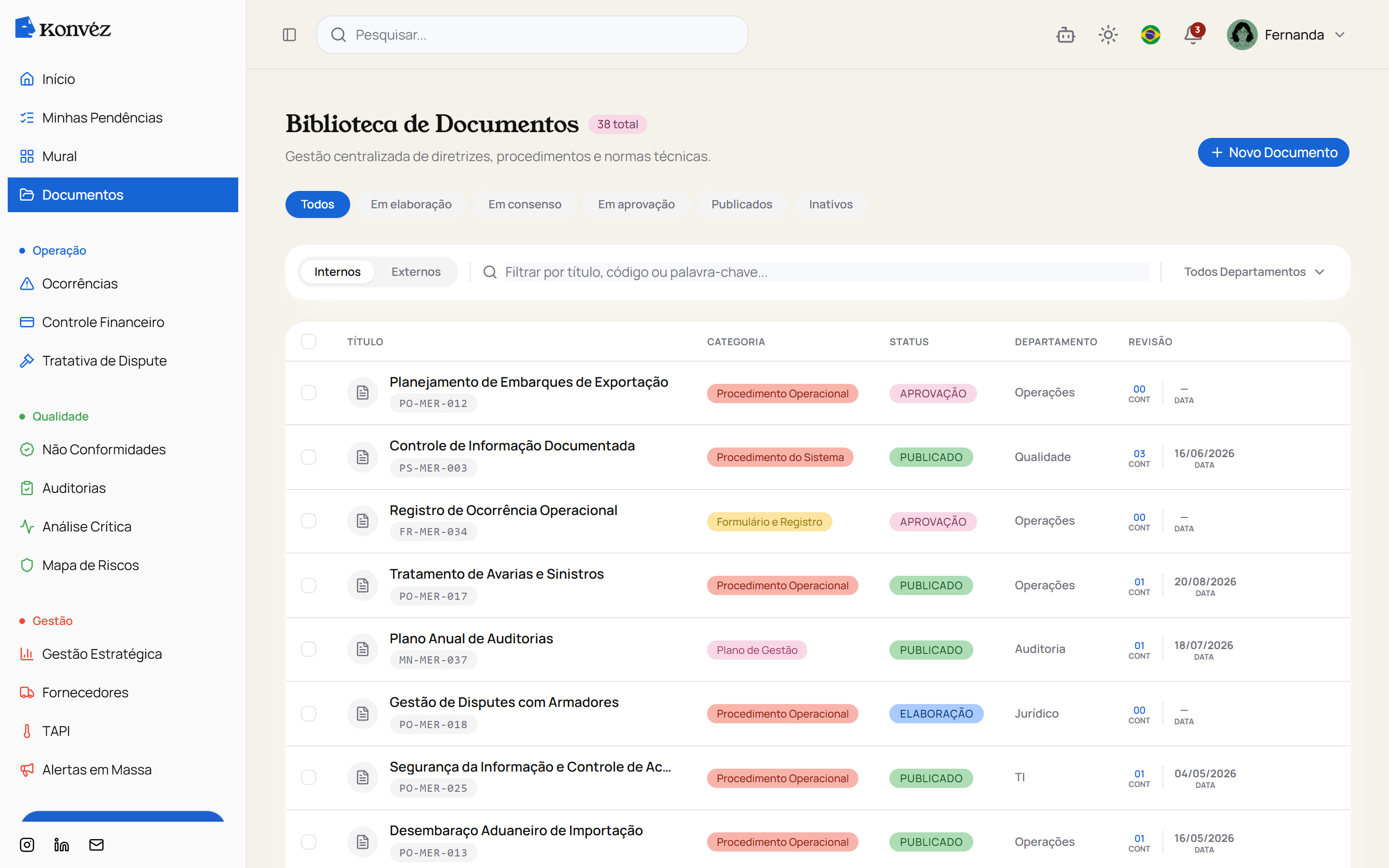
Tabs group documents by drafting, consensus, approval, published and inactive stages. Search accepts a title, code or keyword. The screen also offers a department filter and a choice between internal and external documents.
For teams working across Quality, Operations and other departments, these references make documents easier to locate. Searching by code helps distinguish similarly named files, while the status shows whether the record has reached publication.
2. Check the published revision and file
Opening Documented Information Control reveals code PS-MER-003, published status, content revision 03 and template revision 01. Both revision references are visible in the document header.
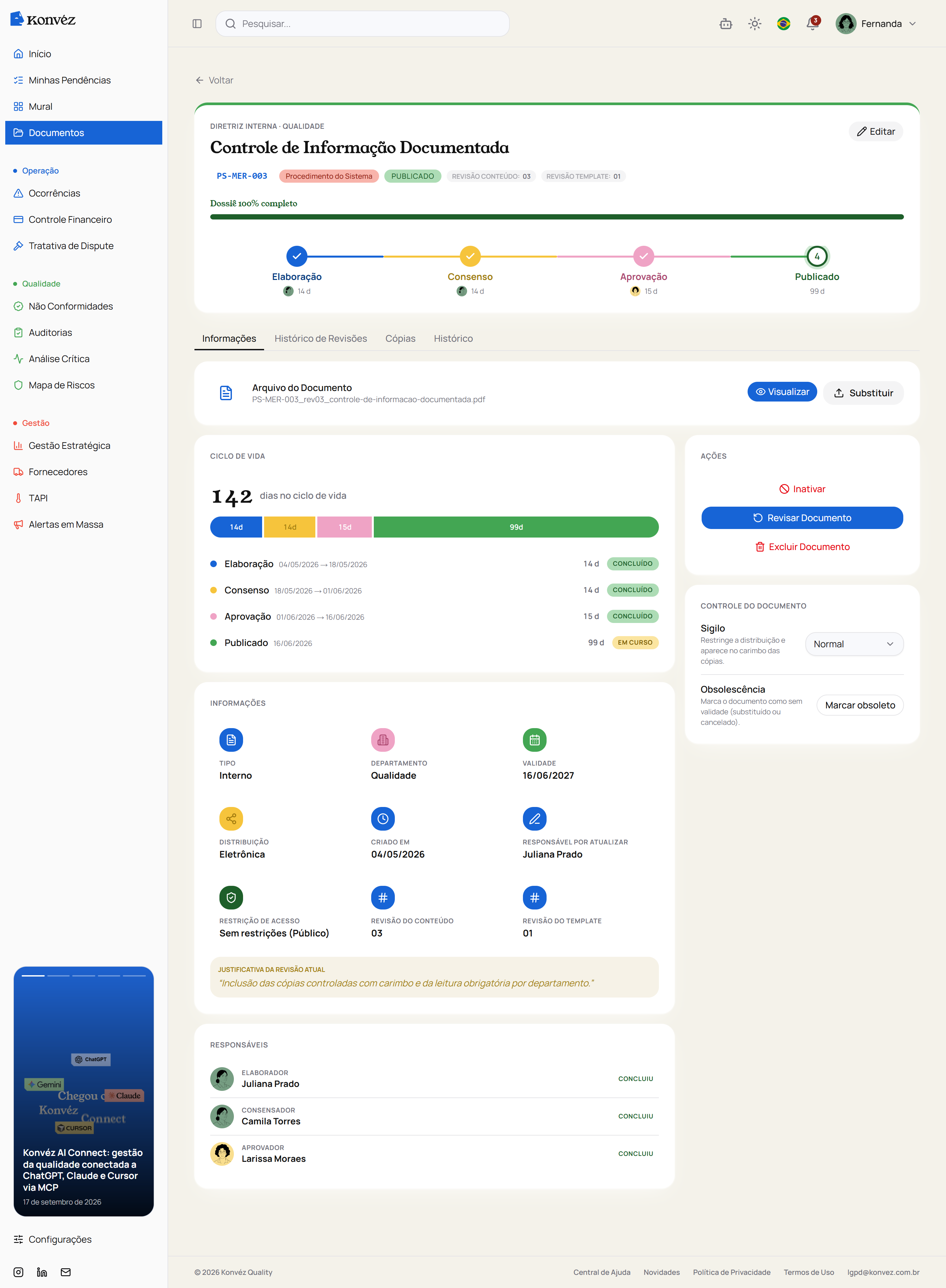
The View action opens access to the file. The page also lists validity, department, distribution, access restriction and the person responsible for updates. In this example, the revision rationale describes the recorded change.
This gives readers a place to check identification and status before consulting the content. For the person maintaining the procedure, the same screen offers a Revise Document action and shows the people responsible for earlier workflow stages.
3. See what is still awaiting approval
The second example, Export Shipment Planning, is at the approval stage. Its workflow shows drafting and consensus completed, approval in progress and publication pending.
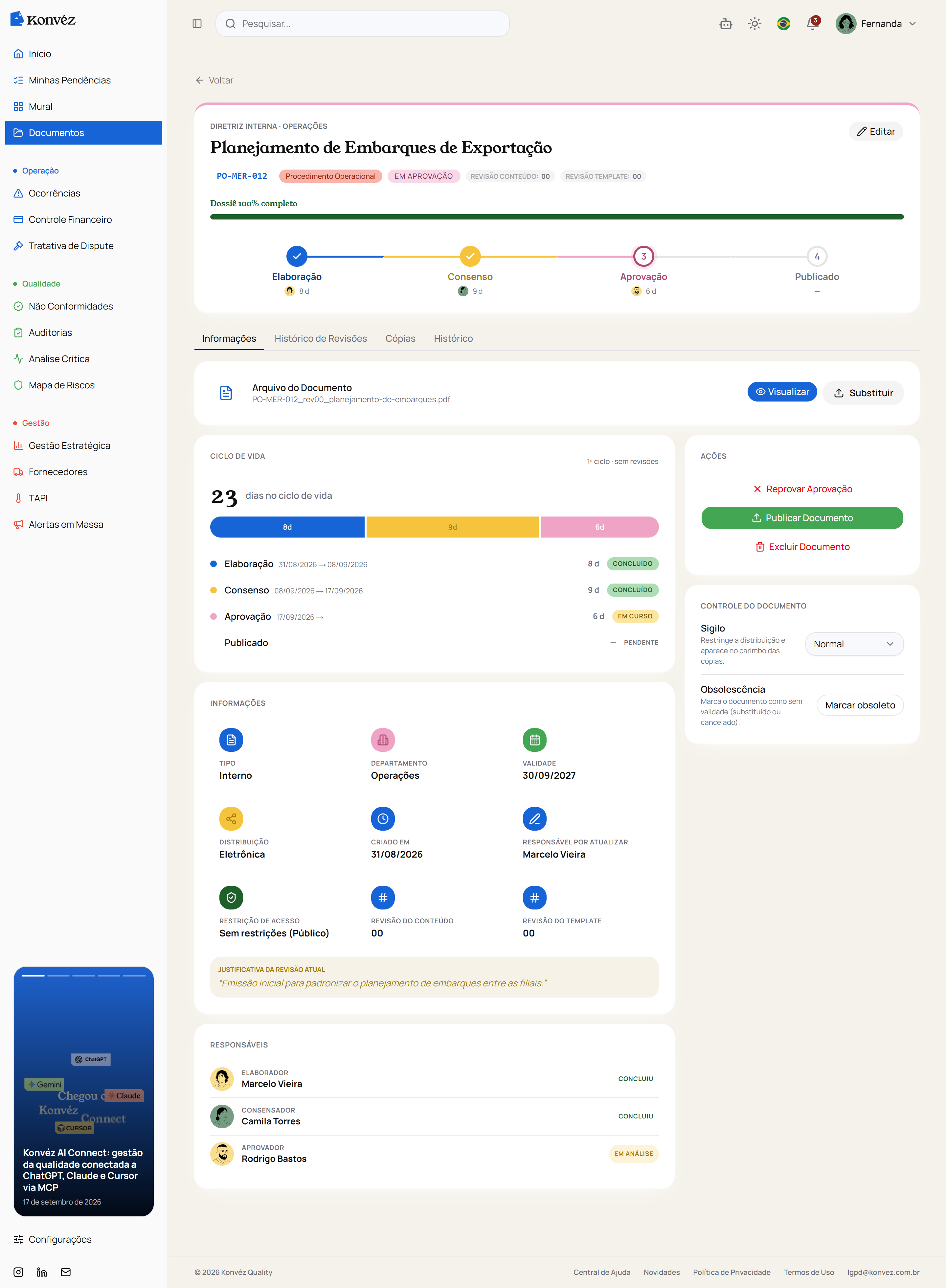
The profile shown in the capture can access Reject Approval and Publish Document actions. The responsibilities panel identifies the reviewer, while the lifecycle panel displays time spent in each stage.
The practical value is context: the team can see the current stage and the person listed as responsible instead of reconstructing progress from messages alone. The screen also distinguishes a file awaiting approval from a published document.
4. Review what changed between versions
Back in the published procedure, Revision History displays revisions 00 through 03. Each row includes the date, change description, responsible person and attachment links.
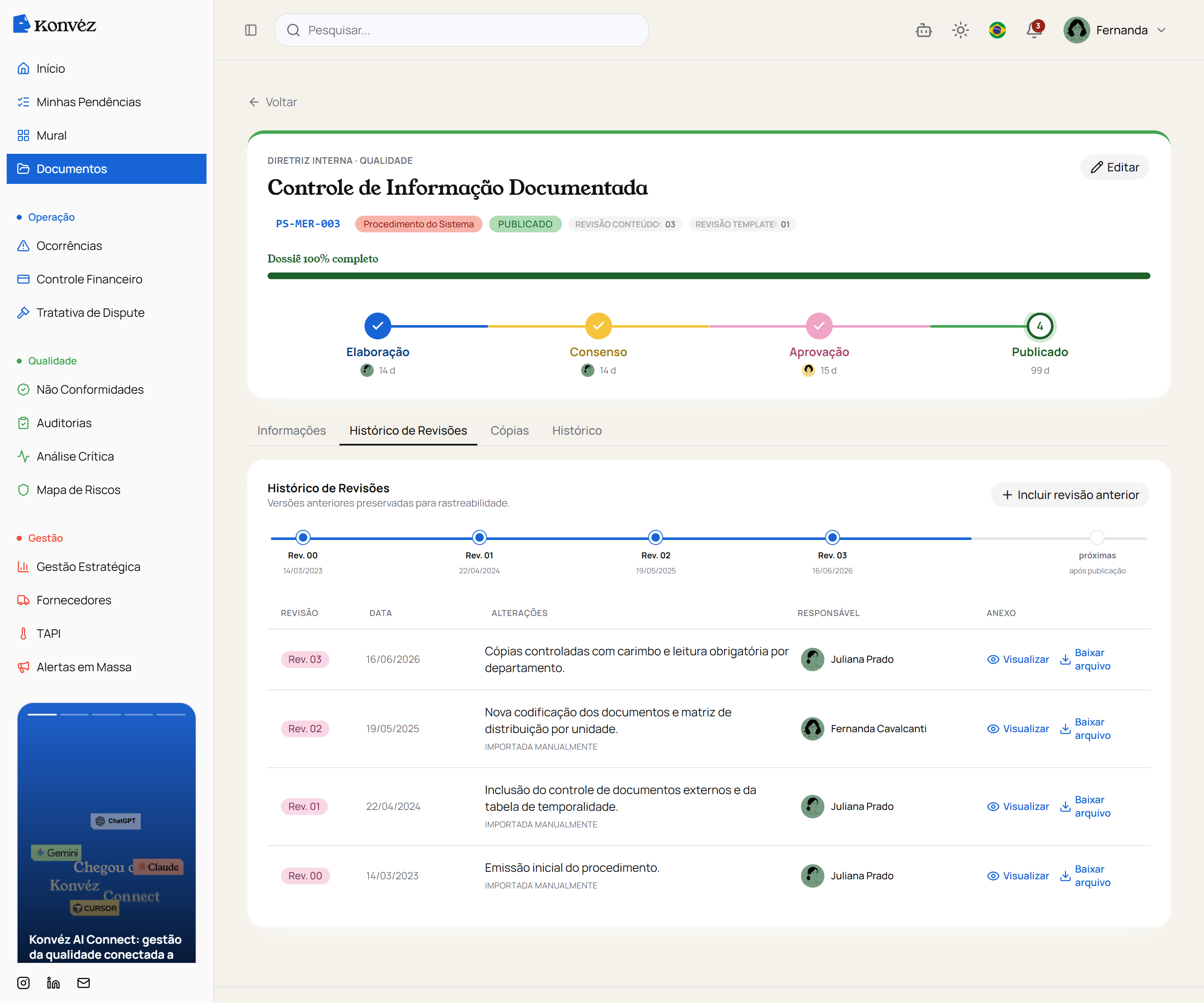
Earlier revisions are explicitly marked as manually imported, providing context about the history’s origin. View and Download file links provide access to the attachments associated with the displayed revisions.
When preparing for an audit, a team can start with the procedure code, check the published revision and retrieve the description and file for an earlier revision. This supports evidence retrieval; assessing conformity still depends on the document’s content and how processes are carried out.
Bring one of your procedures to the demo
Choose a familiar procedure, find it in the library, check its revision and owners, follow its approval stage and consult the history. This gives the demonstration a concrete connection to your team’s daily work.
For process guidance, read our quality document control guide. If you are comparing platforms, see how to choose quality management software.
Explore Konvéz Quality or request a demonstration to discuss this workflow using your team’s scenarios.